
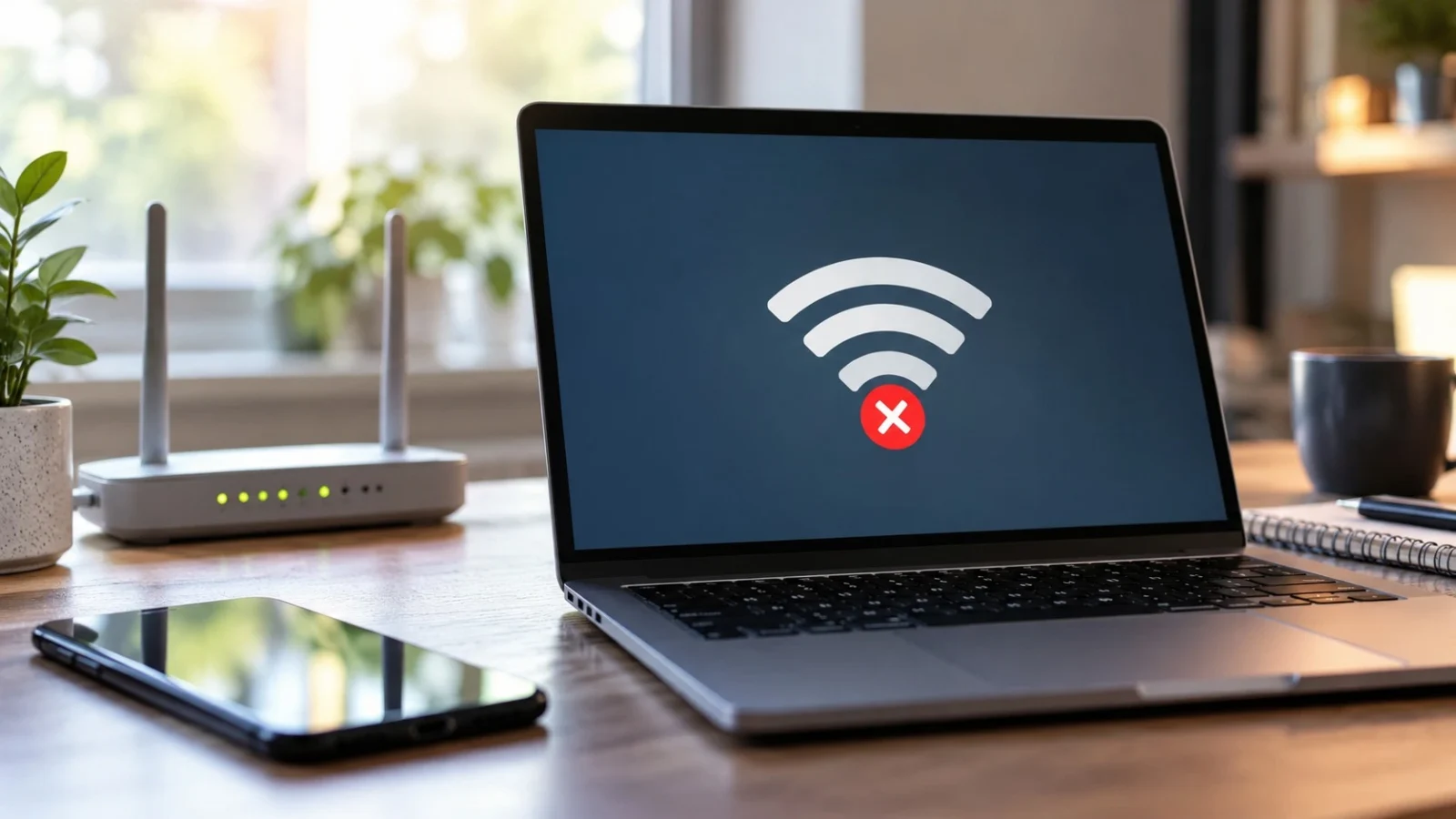
Your phone shows strong Wi-Fi signal bars. Your laptop says “Connected.” But websites do not open, video calls fail, and apps insist that you’re offline. This happens because joining a Wi-Fi network is not the same thing as reaching the internet.
The router may be working while your internet provider is offline. Your device may have received the wrong network settings. A VPN, DNS failure, or public Wi-Fi sign-in page can also leave you connected but unable to browse. The fastest way to find the cause is to see whether the problem follows your device or stays with the network.
Start with the interactive connection checker below. It asks a few questions and gives the next steps for your situation. Nothing is uploaded: your answers are processed inside this page.
Wi-Fi Connection Checker: Get Steps for Your Problem
Choose the answer that matches what you can observe. You do not need to install anything or know your router’s model.
What “Connected, No Internet” Actually Means
Wi-Fi connects your device to a local network, usually through a router. The router uses a separate connection to reach your internet service provider (ISP). Strong Wi-Fi bars measure the wireless signal between your device and an access point; they do not measure the health of your provider’s service.
It is possible to access a wireless printer or the router’s settings while the internet is down. It is also possible for the internet service to be working but for a laptop to fail because its DNS, proxy, or IP configuration is wrong.
Before Changing Anything, Compare Two Devices
Take a second phone, tablet, or laptop and connect it to the same Wi-Fi network. Turn off mobile data during the test so the phone does not quietly switch to its cellular connection. Try loading two unrelated websites on both devices.
| What you see | Where to look first |
|---|---|
| All devices fail | Modem, router internet/WAN status, ISP outage |
| Only one device fails | That device’s network settings, VPN, proxy, or software |
| Device fails on home Wi-Fi but works on a hotspot | Home router settings or compatibility with that network |
| Device fails on several different networks | Device-wide VPN, proxy, DNS, driver, or system configuration |
| Only one site or app fails | Site outage, browser, service-specific filtering, DNS, or IPv6 issue |
How to Fix a Router or Internet Provider Problem
If every device is offline, check the router’s internet or WAN indicator and any separate modem or fiber terminal. A Wi-Fi light means the router is broadcasting; it does not confirm internet service. An optical LOS warning, an authentication failure, or a disconnected WAN interface is more useful evidence of an upstream problem. Light colors and labels differ between brands.
Restart your modem and router using the normal power controls. With separate equipment, turn both off, wait about 30 seconds, start the modem or fiber terminal, let it reconnect, then start the router. If the equipment is combined, restart the single unit. Recheck websites after the indicators settle.
Open your router’s administration page using its documented local address and inspect Internet/WAN status. A disconnected WAN connection or a provider authentication error may call for ISP support. A private WAN address is not necessarily a fault because some providers use carrier-grade NAT.
How to Fix “Wi-Fi Connected, No Internet” on Windows 11 or Windows 10
Open Settings → Network & internet → Wi-Fi and confirm that you are connected to the intended network. Disconnect and reconnect once. If only this PC is affected, inspect its local network configuration before resetting the router.
Check the IP address and gateway
Press Windows + R, enter cmd, and run:
ipconfig /all
Find the active Wireless LAN adapter. Check IPv4 Address, Default Gateway, DHCP Enabled, and DNS Servers. On many home networks, the IPv4 address begins with 192.168 or 10.. An automatically assigned IPv4 address beginning with 169.254 can mean that DHCP did not provide an address. Some managed networks use intentional static configurations, so do not replace them without permission.
Separate a possible DNS failure from a wider outage
From Command Prompt, try:
ping 1.1.1.1
nslookup example.com
If the public-IP ping receives replies while the name lookup fails, DNS is a reasonable suspect. A failed ping alone does not prove the internet is down; firewalls can block ICMP. You can compare resolvers with nslookup example.com 1.1.1.1. If the name resolves correctly but websites still fail, check browser, VPN, proxy, security software, and the error message shown.
Clear the Windows DNS cache if you have reason to believe the stored answer is stale:
ipconfig /flushdns
To check whether a proxy was accidentally enabled, open Settings → Network & internet → Proxy. Temporarily disconnect a personal VPN if it is safe and permitted to do so. On a work-managed computer, ask IT before changing security controls.
Use network reset only after the earlier checks
For Windows 11, go to Settings → Network & internet → Advanced network settings → Network reset. This can remove adapter configurations and may require VPN or virtual-network software to be configured again. Save needed settings first. Do not perform a network reset in the middle of a remote support session.
How to Fix Wi-Fi With No Internet on Android
Open Settings → Network & internet or Connections → Wi-Fi; the wording varies by manufacturer. Turn Wi-Fi off and on, then reconnect. Temporarily turn off mobile data during testing. Restart the phone if the connection is still unavailable.
In the saved network’s details, check that IP assignment uses DHCP unless a specific static configuration is required. Look for unexpected proxy settings. If you set Android Private DNS to a custom hostname, temporarily return it to Automatic and retest. A DNS-filtering or VPN app can also interrupt requests.
If the fault is limited to one Wi-Fi network, forget that network and rejoin with its password. If several phones and laptops fail on the same Wi-Fi, investigate the router and provider instead of resetting each phone.
How to Fix Wi-Fi With No Internet on iPhone or iPad
Open Settings → Wi-Fi, select the connected network’s information button, and check the connection details. Try turning Wi-Fi off and back on, then reconnecting. Test with cellular data turned off, since a successful website load through mobile data does not confirm that Wi-Fi is repaired.
For ordinary home Wi-Fi, Configure IP and Configure DNS are normally set to Automatic. Check whether a VPN or network-filtering app is interfering. If only one saved Wi-Fi network fails, use Forget This Network and connect again.
If simpler steps fail, Apple provides Settings → General → Transfer or Reset iPhone (or iPad) → Reset → Reset Network Settings. This removes saved Wi-Fi networks and passwords, and changes certain cellular and VPN settings. On managed devices, consult IT before using it.
How to Fix Wi-Fi With No Internet on a Mac
Open System Settings → Wi-Fi, select the connected network’s Details, and inspect the TCP/IP and DNS settings. Under TCP/IP, use Renew DHCP Lease when you suspect an expired or incorrect address. Restart the Mac and confirm its date and time are correct. Check personal VPN or network-monitoring software if the Mac fails on multiple networks.
macOS also includes Wireless Diagnostics, available by holding the Option key while opening the Wi-Fi menu on supported versions. If another network works, check the original router or provider before making wider system changes.
When the Wi-Fi Login Page Does Not Appear
Hotels, airports, hospitals, and cafés often use a captive portal. You may need to accept terms or sign in before the network allows ordinary internet traffic. Open a browser and try an unencrypted HTTP page such as http://neverssl.com/, which can sometimes trigger a portal. Do not enter passwords or payment details unless you have confirmed that the page belongs to the venue.
If no portal appears, ask staff for the official connection instructions. Some systems require the operator to reactivate your session or register the device. Avoid bypassing the network’s access rules.
What if Only Some Websites Work?
If one site fails while others load, try a second browser and confirm whether the site works on another network. Browser extensions, VPN rules, DNS filtering, site outages, and certificate problems can affect particular destinations. A wrong device clock can also cause secure websites to fail. IPv4 and IPv6 can break independently, which sometimes makes a connection appear only partly functional.
Pay attention to the actual browser message. “Server IP address could not be found” points toward name resolution; a certificate warning needs a different investigation; a timeout may have several causes. Do not ignore security warnings just to force a site open.
When to Contact Your Internet Provider
Contact your ISP if every device fails on the same network, the modem or fiber terminal reports a line error, or the router shows a disconnected internet connection after a normal restart. Tell support when the problem started, whether wired and wireless devices are affected, and what the WAN or modem status says. This helps them test the correct connection instead of asking you to reset every device.
Frequently Asked Questions
Why are my Wi-Fi bars full when I have no internet?
They mainly reflect wireless signal strength between your device and the access point. Your router’s connection to the provider can fail independently.
Does changing DNS always fix connected-but-no-internet?
No. DNS changes help only when name resolution is the problem. They do not repair a provider outage, disconnected modem, or damaged fiber line.
Why does Wi-Fi work on my phone but not my laptop?
Confirm that the phone is not using cellular data. If it genuinely works on the same Wi-Fi, check the laptop’s DHCP lease, DNS, VPN, proxy, and network driver.
Why does my device fail on both home Wi-Fi and a mobile hotspot?
The common factor is the device, so investigate its VPN, proxy, security software, DNS, and operating-system networking settings. Two separate networks can fail too, but device-side troubleshooting is the better starting point.
Should I factory-reset the router?
Not as a first step. A factory reset may erase credentials and network configurations. Try diagnosis and a normal power restart first; reset only when the manufacturer or provider recommends it and you can restore the configuration.
Why does public Wi-Fi say connected but no internet?
You may need to complete the venue’s sign-in portal, your session may have expired, or its upstream internet service may be unavailable.
Fix the Part That Is Actually Broken
A “Connected, No Internet” message describes a symptom, not a single fault. If every device fails, start with the router, modem, and ISP. If one device fails across several networks, investigate that device. If public Wi-Fi works only after a login page, complete the authorized sign-in. The connection checker above follows these same distinctions and gives the next steps without asking readers to guess.
Editorial note: These are general troubleshooting procedures, not results from tests on a particular router or computer. Menu names and network behavior can differ by device, firmware, provider, and organizational policy.